How To Quickly Build A Huge Collection of POD Products Using AI + Automation
Overview: A straight-line, three-part workflow to scale your print-on-demand catalog fast: (1) generate hundreds of high-quality artwork prompts with a single ChatGPT message; (2) produce images in Midjourney with maximum efficiency; (3) bulk-convert those curated images into ready-to-publish, SEO-optimized products with a few button clicks using the Bulk POD Product Creator. This post outlines the simple mechanics, realistic time-cost, and the compounding benefits of a large, high-quality POD catalog.
Introduction: The fastest straight line to hundreds of SKUs
This guide stays ruthlessly practical. You’ll do two core things—nothing extra:
- Create a large batch of high-quality artwork images using Midjourney, fueled by prompts you bulk-generate with a single ChatGPT message.
- Convert your images into ready-to-publish POD products in bulk with the Bulk POD Product Creator (titles, descriptions, tags, variants, pricing, and placement handled automatically).
The goal is speed without sloppiness: hundreds of publishable SKUs with minimal manual work.
Part 1 — Create Hundreds of Artwork-Generation Prompts via ChatGPT
Step 1 — Explore in Midjourney (1–2 hours)
What is Midjourney? It’s a generative image tool: you type a short text prompt and it returns a four-image grid based on your description. From that grid you can upscale the best frame(s) for full resolution or generate close variations. You can use it through Discord or the web app, then download the final images for production.

Before you scale, spend a short, focused session proving which prompt styles produce the look you want. This is where you find your winners.
What to do:
- Draft 10–20 prompts by hand that match your intended vibe (e.g., modern gallery wall art, whimsical animal portraits, retro sci-fi, etc.).
- Generate images and bookmark the keepers. Note what worked: subject framing, lighting cues, palette, style tags, composition notes (e.g., “centered,” “rule of thirds,” “negative space”).
- Narrow down to 3–6 favorite example prompts that consistently yield outputs you’d actually sell.
Time-cost (realistic): ~60–120 minutes of exploration. This is the only “thinking” step you can’t skip. Everything after this is just scaling.

Step 2 — Use ONE ChatGPT message to create 300–500 prompts
Once you have your 3–6 favorite example prompts, paste one message into ChatGPT containing (a) your target vibe and (b) those examples. ChatGPT will return hundreds of new prompts, each on its own line, ready to paste into Midjourney.
Drop-in “one-shot” ChatGPT prompt (edit the bracketed parts)
You are a Midjourney prompt generator.
Goal:
Create [300] unique text prompts suitable for [vertical poster wall art] that I can paste straight into Midjourney to produce artwork images.
Return format:
- Output ONE prompt per line.
- No numbering. No extra commentary.
- Keep each prompt concise but descriptive.
Guidelines (apply to every prompt):
- Every prompt must be unique and descriptive.
- Vary phrasing to avoid near-duplicates across the set.
- Forbidden: no trademarks, no brand logos, no real celebrity likenesses.
- Append --ar [3:2] to each prompt (used for image aspect ratio).
Match the vibe of my best examples below, but DO NOT copy them—create fresh, distinct prompts that feel like natural siblings:
EXAMPLES:
[Example 1 you liked from Midjourney]
[Example 2 you liked from Midjourney]
[Example 3 you liked from Midjourney]
[Example 4–6 optional]
Now generate the prompts.
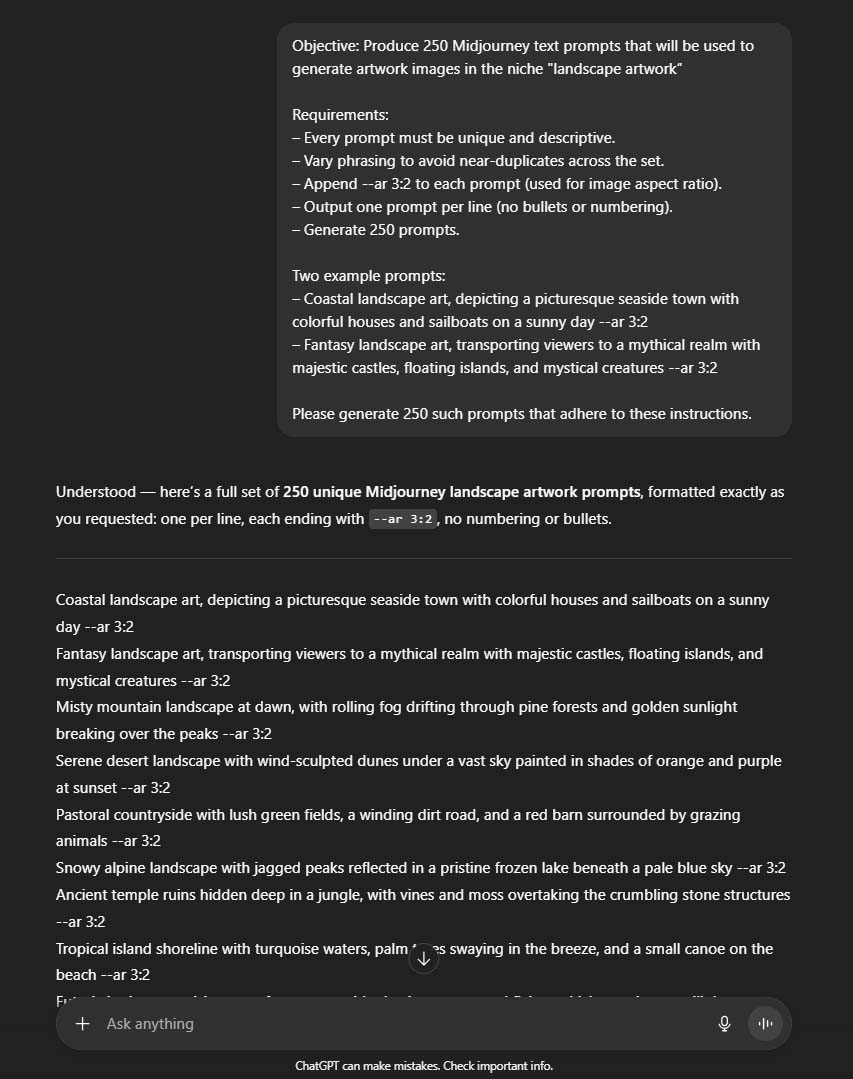

Notes that keep this simple and effective:
- Just paste the message once. ChatGPT will produce hundreds of prompts in one go.
- If it stops early, reply with “Continue” until you have your full set.
Recommended: Copy ChatGPT’s output into a spreadsheet file (one prompt per line), for quick and efficient handling at the next step in the workflow.
How to judge the output quickly
- Variety: Subjects, palettes, and styles actually rotate; prompts aren’t cookie-cutter.
- No violations: Nothing that risks trademark/celebrity issues.
- Sellability: Skim 20–30 prompts—do they read like products you’d list?
Part 2 — Create Midjourney Images With MAXIMUM Efficiency
The stupidly simple run-loop (maximum efficiency)
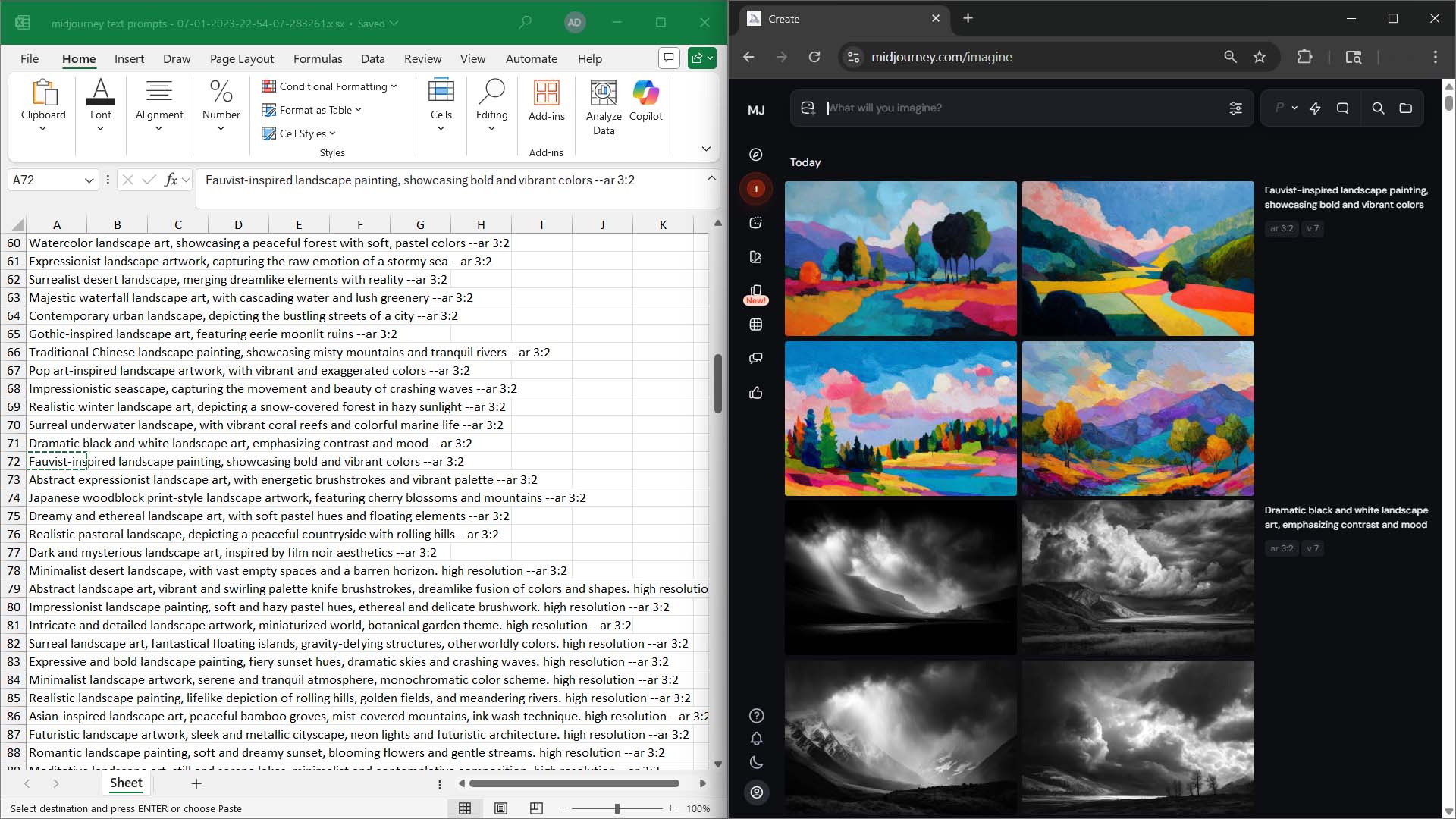
- Left side of your screen: your ChatGPT-generated prompts, pasted into a simple spreadsheet list (one prompt per line).
- Right side of your screen: Midjourney (Discord or the web app).
Process:
- Copy the first prompt from the left.
- Paste into Midjourney on the right. Submit.
- While that grid renders, copy the next prompt and submit it.
- Rinse and repeat down the list.
This keeps your hands moving and eliminates context switching. You’re continuously “feeding the queue” while images arrive.
Curate while it generates (turn “waiting” into selection)
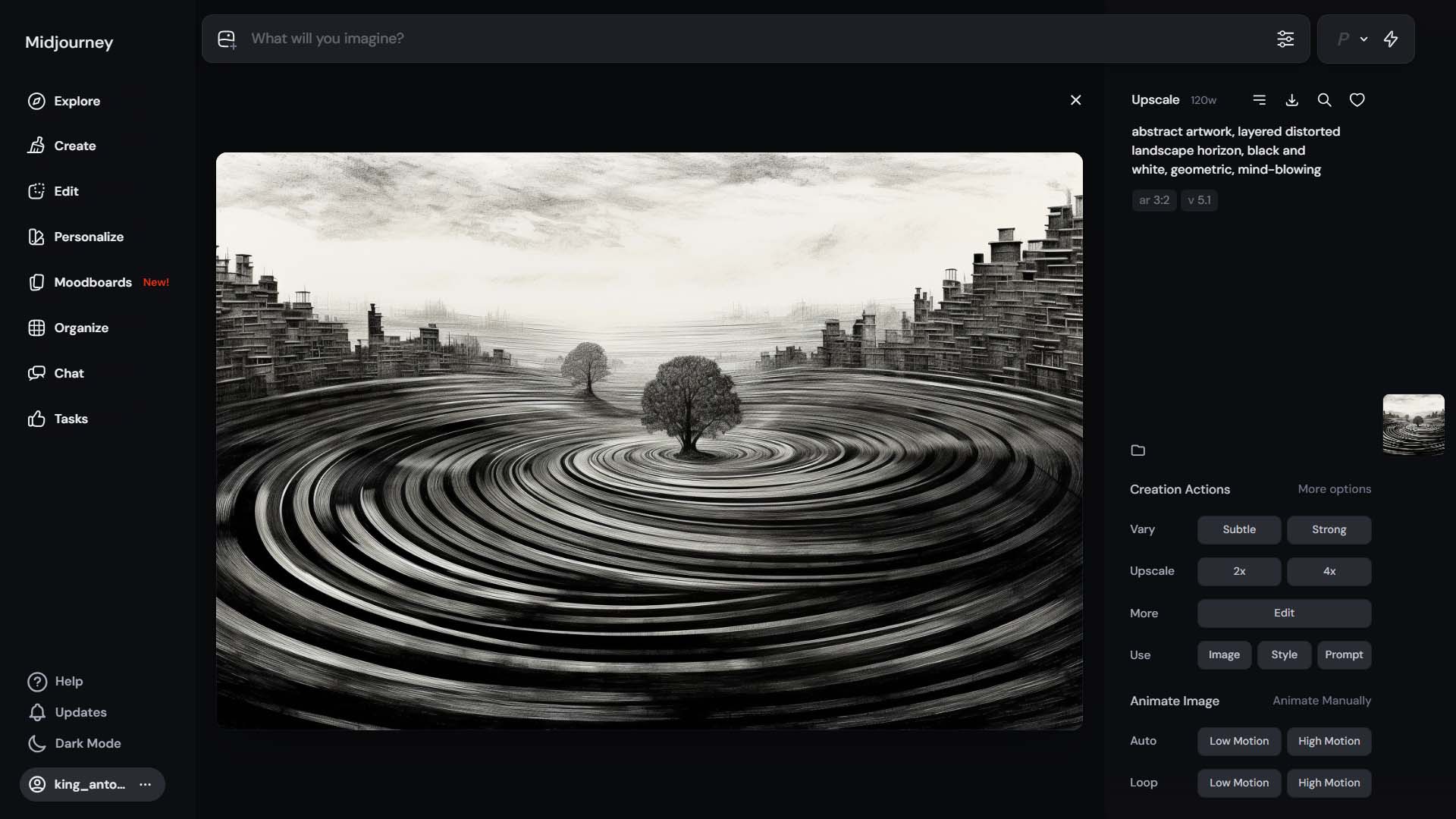
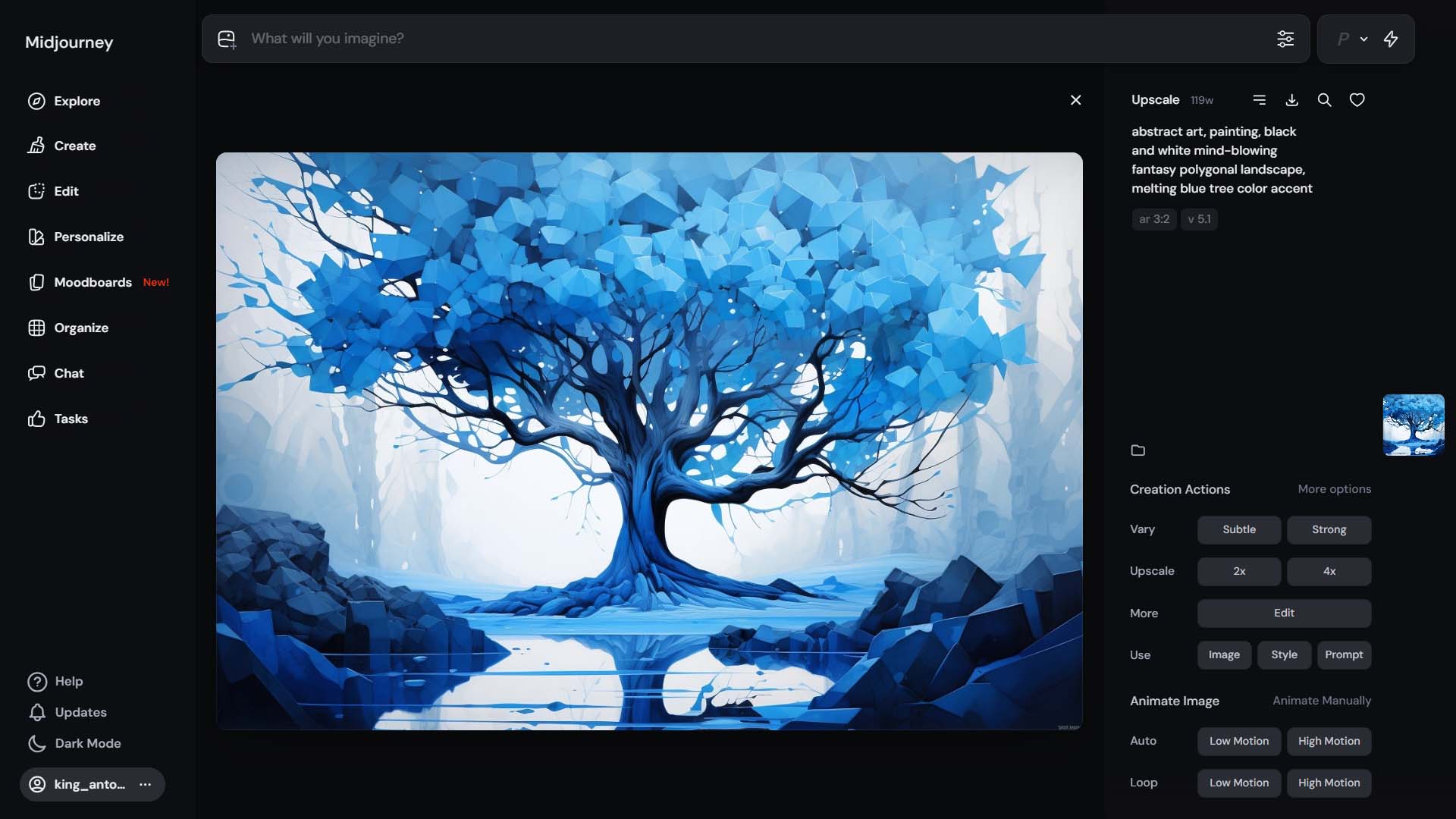
Every prompt returns a 4-image grid. Not all four will be winners—and that’s expected.
- As new grids land, make decisions immediately.
- Upscale the best frame(s).
- Skip the rest and keep moving.
- Only download the upscaled winners. This avoids clutter and keeps your asset folder “clean” with products you actually intend to publish.
- If a near-miss deserves another shot, make one quick variation, then keep going.
The key idea: curation is required anyway. Doing it in real time while the next grids arrive collapses total cycle time.
Concurrency & speed modes (the basics you need)
Midjourney lets you run multiple prompts at once and choose between speed modes:
- Concurrency: You can submit several prompts back-to-back so multiple grids render in parallel (within your plan’s limits). A practical baseline is to keep ~3 prompts “in flight” at all times; increase if your plan allows and your device/network keep up.
- Fast vs. Relax (and Turbo):
- Fast uses your monthly Fast GPU time; results arrive quickly.
- Relax is slower but doesn’t consume Fast time (available on higher-tier plans).
- Turbo is the fastest but consumes Fast time more aggressively.
Practical tip: If you have Fast time available, run in Fast for the bulk generation. If you’re conserving Fast time (or it’s depleted), switch to Relax and keep the pipeline moving while you curate.
Compliance note: avoid “Midjourney automation” tools
Midjourney's Terms of Service does not permit automated creation via unofficial extensions, scripts, or third-party “APIs.” Some Chrome extensions and SaaS tools claim to automate Midjourney submissions—using them can violate the platform’s terms and put your account at risk.
Use manual copy/paste and the built-in batching features only. It’s simple, safe, and you’ll be curating in real time anyway.
Throughput & time-cost (realistic, conservative math)
- Input: 500 prompts → ~2,000 images (4 per prompt).
- Concurrency assumption: You keep ~3 prompts running at once.
- Per-batch timing: Assume ~30 seconds per 3-prompt batch (in Fast or otherwise favorable conditions).
- Batches: 500 ÷ 3 ≈ 167.
- Raw generation time: 167 × 30s ≈ 5,010s ≈ 84 minutes.
- Add upscaling + curation + downloads: double it to be conservative → ~168 minutes.
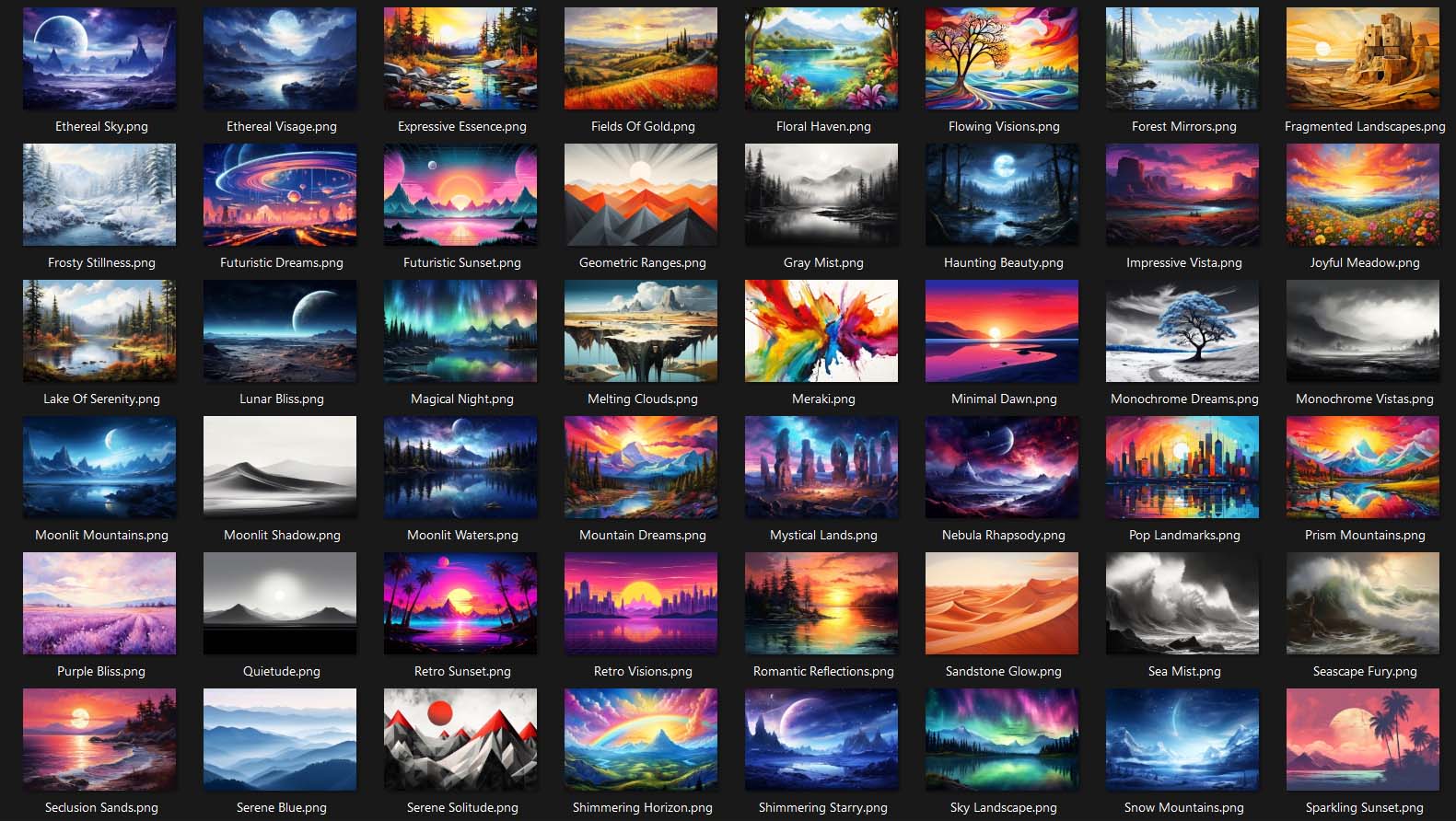
- Rounded total: ≈ 3 hours to end up with ~400 keepers (a selective 20% pass rate) ready for product creation.
That’s the “create artwork at scale” half of the pipeline. Next, you’ll drop these curated images into the Bulk POD Product Creator to generate fully configured, SEO-ready POD products—titles, descriptions, tags, variants, pricing, and placement—in bulk.
Part 3 — Use Automation To Convert Curated Images Into POD Products (Fast, Repeatable, SEO-Ready)
Plain-English Summary: How the Tool Works
The Bulk POD Product Creator takes a folder of your curated artwork images and turns them into fully configured, SEO-ready products on your POD store—in bulk. You choose one Example Product (your “role model”), tell the tool how to place images, and decide how titles/descriptions/tags should be written. Then you click a button. The software clones your Example Product’s variants, pricing, and settings for every artwork, inserts each image correctly, and auto-generates product SEO (or copies your own template rules). Instead of wasting hours of time doing this boring work manually, this simple automation tool creates all your POD products for you.
The Straight-Line Setup (Minimal Touch, Maximum Output)
- Select Images & Placement — Upload your curated images and pick a placement mode.
- Connect Store & Pick Example Product — Authenticate once, then select a known-good SKU whose variants/pricing/settings you want to replicate across the batch.
- Specify New Product Creation Rules — Decide whether to create product titles, descriptions and tags using Default Settings or Generate Using AI.
- Run Operation — Name the operation (optional), click Create My Products, and let the system build the catalog.
Concise Deep Dive: The Three Core Blocks (What to Choose & Why)
Step 1) Images & Placement

- Pick “Stretch to Fit” for full-bleed poster/canvas catalogs (fastest path; looks great across mixed aspect ratios).
- Pick “Preserve Aspect Ratio” for graphics with text/logos/geometry (no distortion, centered, clean).
- Pick “Exactly Match Example” when you’ve perfected a tricky layout (mugs/totes/wraps) and want pixel-consistent replication.
Step 2) Example Product (Your “Role Model”)

- Variants: Sizes, materials, orientations, defaults—all cloned.
- Pricing: Per-variant prices and margins repeated consistently.
- Policies/Options: Store-side settings carry forward automatically.
- Best practice: Use a proven SKU (QA’d across variants) so every clone looks right the first time.
Step 3) Product Info Rules (SEO Without Boring Busywork)

Titles:
- Simple for minimal branding (“Full Moon Landscape”).
- Compound for multi-hook SEO (“Full Moon Landscape: Black & White Photography, Scenic Night Artwork”). Compound titles tend to capture more long-tail queries without resorting to spam.
Descriptions:
- The AI covers subject/style/palette/mood in natural language.
- Your HTML block standardizes facts buyers and search engines care about (material, finish, sizes, care).
Tags:
- Let AI propose artwork-specific tags.
- Append your custom tags (e.g., “poster, wall art, prints, home decor”) for store-level discovery and consistent collection logic.
Time-Cost: Learn Once, Then Launch in Minutes
One-time learning curve: ~30–60 minutes to try a couple of test products and settle on:
- A default placement choice per product family (e.g., posters vs. apparel)
- A reliable Example Product for each family
- Your preferred title template, description length + HTML, and tag setup
After that: Save the operation. Next time, it’s ~60 seconds to load the saved operation, choose a new image batch, and click Create My Products.

Putting It All Together (Realistic Totals)
From earlier parts of the guide:
- Prompt R&D (Midjourney testing): ~1–2 hours
- Bulk prompt generation with one ChatGPT message: 5–10 minutes
- Midjourney generation + live curation + upscaling + downloads (≈400 keepers): ~3 hours
- Bulk POD Product Creator learning (one-time): ~30–60 minutes
- Future batches (after saving an operation): ~60 seconds to kick off creation, plus optional quick QA
Net effect: In roughly 4.5–6 hours total, you can move from zero to ~400 publish-ready artwork images, and then you can convert your artwork into hundreds of SEO-ready products with a couple of clicks. Subsequent drops are dramatically faster: repeat your Midjourney run, then trigger the saved operation in a minute.
Why A Huge Catalog Matters (And How It Drives Revenue)
A larger, coherent, high-quality catalog produces compounding advantages:
1) More entry points → more organic traffic
Every listing is a landing page. Ten listings capture a handful of queries; a thousand well-optimized listings capture hundreds of intent variations. Titles, descriptions, and tags become a net that catches long-tail searches you’d otherwise miss.
2) Higher session duration (and better engagement)
When shoppers discover a store with depth, they browse. Depth leads to longer time-on-site, more clicks, and more “related item” exploration. Engagement signals correlate with conversion and can reinforce search visibility over time.
3) Higher average order value (AOV)
With more relevant options, shoppers are likelier to:
- Add multiple items (complementary themes, sizes, or colorways)
- Upgrade to larger formats or premium materials
- Explore bundles or series that visually belong together
4) Better price realization
A broader selection increases the chance someone finds the “perfect match” piece they’re willing to pay more for. When a product resonates precisely, discount pressure falls.
5) Richer long-tail coverage
More SKUs mean more opportunities to align titles/descriptions/tags with specific, high-intent phrases. Each optimized page becomes a durable asset that accrues traffic over time.
6) Brand credibility & trust
A robust, consistent collection signals professionalism. Cohesive naming, polished descriptions, and correct placements communicate quality before a buyer ever checks out.
Rule of thumb: Given equal quality, more relevant listings yield more sales. Historically the blocker was manual labor. With Midjourney + the Bulk POD Product Creator, the blocker disappears.
Wrap-Up
You now have a lean, repeatable system to create hundreds of high-quality artwork images in hours and publish them as SEO-ready print-on-demand products with minimal effort:
- Explore Midjourney briefly → generate 300–500 prompts with one ChatGPT message
- Run prompts efficiently → curate live → keep ~400 strong images
- Load your saved operation in the Bulk POD Product Creator → click Create My Products → publish
The outcome is a large, optimized catalog that compounds traffic, engagement, AOV, and perceived brand quality—without the grind.