How Does the "Bulk POD Product Creator" Work?
Summary: The Bulk POD Product Creator is a print-on-demand automation tool that connects to your POD store, takes a folder of artwork files, and—using an “example product” as the blueprint—creates matching POD products in bulk with your chosen image-placement rules and with your chosen title, description and tag settings. (In this article, we will focus on using it with Printify.)
1) What the tool does (and who it’s for)
The Bulk POD Product Creator automates one of the most boring, time-consuming, repetitive parts of any print-on-demand seller's workflow: creating many similar products (e.g., posters, canvases, wall art, apparel) from a set of images. Instead of spending hours of time building each listing by hand, you point the tool at a single example product in your print-on-demand store, choose how images should be placed, decide how titles/descriptions/tags are generated or copied—and the tool automatically creates products in bulk that follow those rules.
Ideal users:
- Artists, photographers, and POD sellers producing collections (e.g., 50 poster designs across the same sizes).
- Agencies or storefronts that need consistent titles/tags and a standardized blueprint for hundreds of SKUs.
- Anyone who wants to batch products while preserving layout consistency and SEO structure.
Key benefits of using the Bulk POD Product Creator
Beyond simplifying the product creation process, the Bulk POD Product Creator delivers immediate, measurable benefits over doing everything manually. By automating this process using this tool, sellers typically save hours of repetitive listing work per collection, freeing up valuable time to focus on high-leverage tasks such as improving designs, running ad campaigns, or scaling new storefronts.
The tool also eliminates the risk of inconsistent formatting or forgotten details that often creep in when creating listings one-by-one. By cloning your example product and applying standardized rules for images, titles, descriptions, and tags, it ensures that every product looks professional and follows your SEO strategy. This combination of speed, accuracy, and consistency translates directly into higher productivity and a store that scales smoothly.
2) Key concepts
Connected print-on-demand store – You select which store to create products in from a dropdown; all new items appear there.
Example product – A real product in your store that serves as the blueprint for variant structure and print-area layout. The tool copies this product’s structure (e.g., sizes/variants and print-areas) and swaps in your images according to your placement mode.
Placement modes (3 options)
- Stretch Images To Fit Print Area(s)
- Preserve Image Aspect Ratios & Center (fills the nearest boundary while keeping aspect ratio)
- Exactly Match Example Images (replicates the example product’s image placements)
AI content generation (optional) – For titles, you can either use the image filenames as the titles or you can generate using AI. For descriptions and tags, you can either copy from the example product or generate with AI. Title generation supports Simple and Compound modes. You can also append custom text and set content templates.
Note: High-resolution processing occurs automatically in the background; there is no longer a separate “upscale” checkbox, as previous video demos may have shown.
3) Quick start (TL;DR checklist)
- Have a finished example product in Printify that already looks the way you want.
- Prepare a folder of final artwork files (recommended: high-resolution images sized for your product category).
- Choose one placement mode for this batch.
- Decide how you want titles/descriptions/tags handled (copy vs. AI, plus any custom text).
- (Optional) Save the configuration as a Saved Operation to reuse later.
- Click Create My Products and watch progress (with the ability to cancel).
4) Step-by-step workflow

Step 1: Select your image files
Use Choose Files to load one or many images. Then pick one of the three Image Placement & Resize options:
- Stretch to Fit
- Preserve Aspect Ratios & Center
- Exactly Match Example Image(s)
You’re choosing the rule set the tool will apply to every image for this batch.
Step 2: Select your example product (and store)
From Create Products For This Store, select the target print-on-demand store. (For this article, we will focus on using the tool with Printify.)
To connect a new store, simply grab the Store ID from the Printify "Orders" page URL (eg, https://printify.com/app/store/1805297/orders/1), then create a Printify API Key with the requisite permissions via the "Connections" page in the Account section.

Required API scopes for Printify:
- catalog.read
- print_providers.read
- products.read
- products.write
- shops.read
- uploads.read
- uploads.write
- Which variants are created (sizes, materials, etc.).
- Which print-areas exist and how images will be placed in them.

Step 3: Define product-creation rules
Product Titles
- Use Image Filenames or Generate Using AI.
- For AI, choose Simple or Compound.
- Simple: a concise title built from the image content and category.
- Compound: a richer, multi-segment title (you set the number of subtitle segments).
- Include Custom Text In Each Title (e.g., “— Canvas Wall Art”).
- Control the Title Template (e.g.,
[AI-Generated Title] + [Custom Text]).
Product Descriptions
- Copy From Example Product or Generate Using AI.
- For AI, set the # of paragraphs and optionally include Custom HTML boilerplate (e.g., a sizing or materials note).
Product Tags
- Copy From Example Product or Generate Using AI.
- Set Max # of AI-Generated Tags.
- Optionally append your own evergreen tags to every product in the batch.

At any time you can Save Current Operation (name it) and later Load Saved Operation from the header for reuse.
Create & monitor
Press Create My Products to start. The interface shows:
- Operation Status (e.g., waiting/working)
- Progress (e.g.,
12/50 products created) - Cancel Current Operation (to stop a long batch)
5) How image placement works (the 3 modes)
A) Stretch Images To Fit Print Area(s)
- The artwork is scaled to the print-area’s exact dimensions.
- Fast, uniform coverage with no letterboxing.
- Best for abstract patterns or designs that tolerate non-uniform scaling.
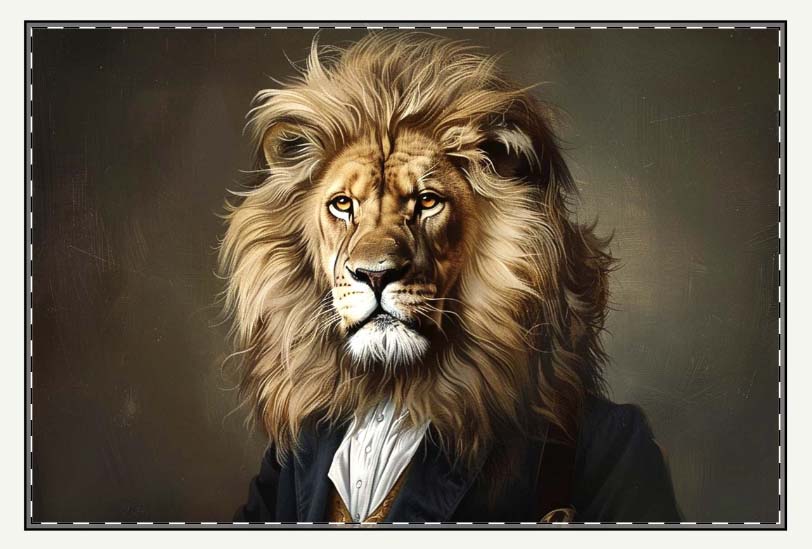
B) Preserve Image Aspect Ratios & Center
- The tool scales each image until the nearest print-area boundary is reached, without changing the image’s aspect ratio, then centers it.
- This fills as much of the print-area as possible while preventing distortion.
- Use when composition matters (e.g., photography, typography that must not stretch).
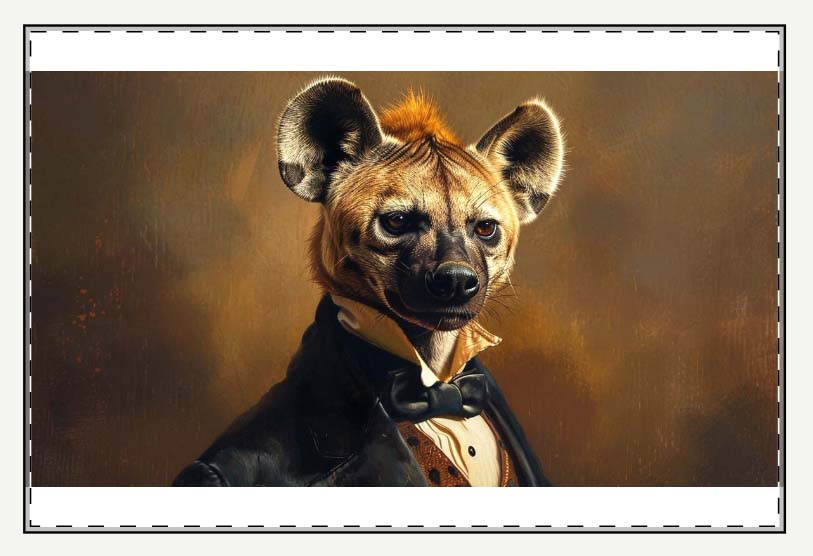
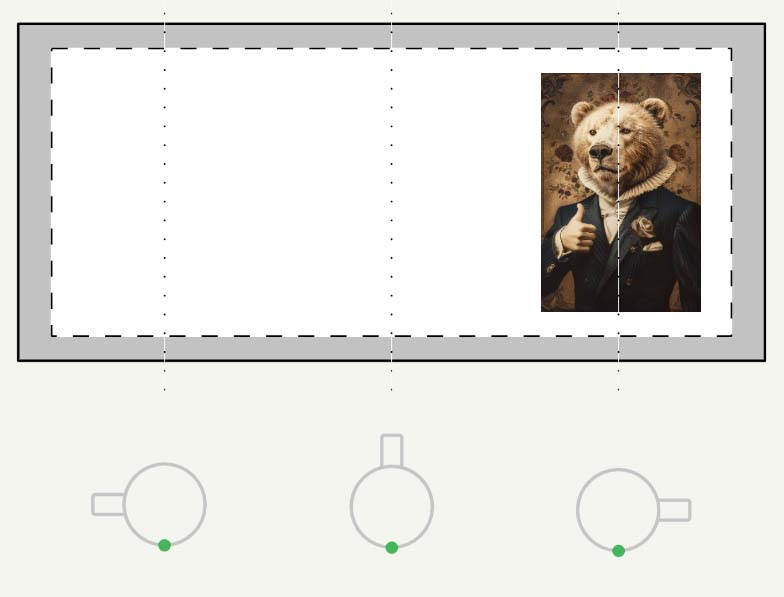
C) Exactly Match Example Image(s)
- The tool analyzes your example product’s print-area placements and reproduces them for each new image.
- Choose this when you want pixel-consistent framing relative to the example (e.g., a series where the subject must sit at the same coordinates across all variants).
- Most precise; relies on a well-prepared example product.

6) Title, description, and tag generation
Titles
- Simple vs. Compound allows you to control verbosity.
- Compound titles can include multiple descriptive segments (e.g., subject, style, medium, room/intent).
- Add consistent suffixes with Custom Text (e.g., “— Canvas Wall Art,” “— Poster Print”).
Descriptions
- Copying from the example product guarantees consistency.
- AI-generated descriptions let you set a paragraph count and optionally inject custom HTML (e.g., care instructions, materials notes, size chart links).
Tags
- Copying preserves your current SEO taxonomy.
- AI tags can expand coverage; cap the count with Max # of AI-Generated Tags and append fixed tags (brand, niche, seasonal).
Practical SEO note: Decide your canonical naming patterns once, then save the operation and reuse it across collections to maintain consistent keywords and structure.
7) Saved operations & repeatability
Every choice you make—store, example product, placement mode, content rules—can be saved as a Saved Operation. This enables a reliable “one-click” run for future batches (e.g., “Posters 2:3 — Compound Titles — AI Tags 20”). It’s the fastest way to maintain clean, repeatable SEO conventions over time.
8) Tips, guardrails, and common pitfalls
- Start with a perfect example product. Set the exact variants, prices, and product settings you want duplicated.
- Group images by aspect ratio. If you mix 2:3 photos with square art in the same batch, prefer Preserve Aspect Ratios & Center or run separate batches.
- Use Compound titles intentionally. Decide on the number of subtitle segments ahead of time to keep lengths consistent.
- Append evergreen tags sparingly. Too many generic tags can dilute relevance.
- Watch progress on the first large run. If a pattern isn’t right, cancel, tweak, and re-run; Saved Operations make iteration fast.
- Publishing flow. New items appear in your Printify store; publish/sync to your sales channel from there based on your store’s normal settings.
9) Frequently asked questions
Does the tool change my example product?
No. It reads the blueprint from the example product and creates new products that follow the same structure.
Can I mix categories in one batch?
Use one example product per batch. If you want canvases and posters, run two batches—each with an appropriate example product.
What happens if my image’s aspect ratio is very different from the print-area?
Stretch will fill the space but distort the image.
Preserve & Center will fill the nearest edge without distortion, potentially leaving small crop or overflow handled by centering.
Exactly Match Example will replicate the blueprint placement; ensure your example is designed for that ratio or split the batch.
Can I reuse this configuration later?
Yes—use Save Current Operation, then Load Saved Operation next time.
Will my images be high-resolution in the final product?
Yes. Resolution handling happens automatically in the background; there is no longer a separate “upscale” toggle, as earlier video demos may show.
Bottom line
The Bulk POD Product Creator turns a proven manual workflow—pick a blueprint, place images consistently, and write clean SEO copy—into a repeatable, three-step automation:
- Select images → choose one of three placement modes
- Select example product → clone its structure to new products
- Define rules for titles/descriptions/tags → copy or AI, with templates and custom text
Save the configuration, run it again for the next collection, and keep your store’s SEO structure consistent while you scale.
Why it matters
The true value of the Bulk POD Product Creator isn’t just in faster uploads—it’s in unlocking growth capacity. Manual listing creation can quickly become a bottleneck, limiting how many designs you can realistically bring to market. By automating this step, you can upload entire collections in minutes instead of days, ensuring your store grows in pace with your creative output.
This time-savings compounds: the more you use the tool, the more hours you reclaim each week. That reclaimed time can be reinvested into higher-payoff activities—design innovation, marketing strategy, customer engagement—while the tool handles the grunt work of product creation. In short, it allows you to focus on what actually drives sales, while ensuring that your store’s backend operations run at maximum efficiency.