
"Bulk POD Product Creator": Features & Benefits Explained
Summary: The Bulk POD Product Creator is a print-on-demand automation tool that completely automates the creation of print-on-demand products. This tool takes a folder of images, a single “example product” from your store, and a set of content rules—then creates matching products in bulk. It standardizes image placement, variant selection, product settings, prices, titles, descriptions, and tags so you can scale listings quickly and consistently. Compared against the boring grind of manually creating your print-on-demand products one at a time, the Bulk POD Product Creator provides substantial time savings for any print-on-demand seller looking to quickly build up their collection with a large number of products. (In this article, we will focus on using this tool with the Printify POD platform.)
1) Overview & value proposition
The Bulk POD Product Creator replaces time-consuming, manual, error-prone listing work with a repeatable pipeline:
- Blueprint once: Choose a finished example product in your print-on-demand store whose variants and print-areas are already correct.
- Batch images: Upload a set of designs to apply across that blueprint.
- Standardize content: Decide how titles, descriptions, and tags are produced—copied from the example product or generated with AI.
- Create in bulk: The tool produces new print-on-demand products that match your rules.
This approach is designed for sellers who publish collections (posters, canvases, wall art, apparel, etc) and want consistent formatting, SEO structure, and faster time-to-market. Using this powerful automation tool, once your operation is set up, you can create hundreds of print-on-demand products quite literally with a single button click — in bulk, completely automated.
2) Step-by-step feature walkthrough (mapped to the UI)
Step 1: Image upload & placement options

Select the images to create print-on-demand products for by clicking the "Choose Files" button. This will open a filepicker, where you can select all of the artwork images to use for the current operation.
- Accepted image filetypes: JPEG/JPG or PNG
- Maximum allowed image filesize: 50MB
Next, select exactly one placement mode for the batch:
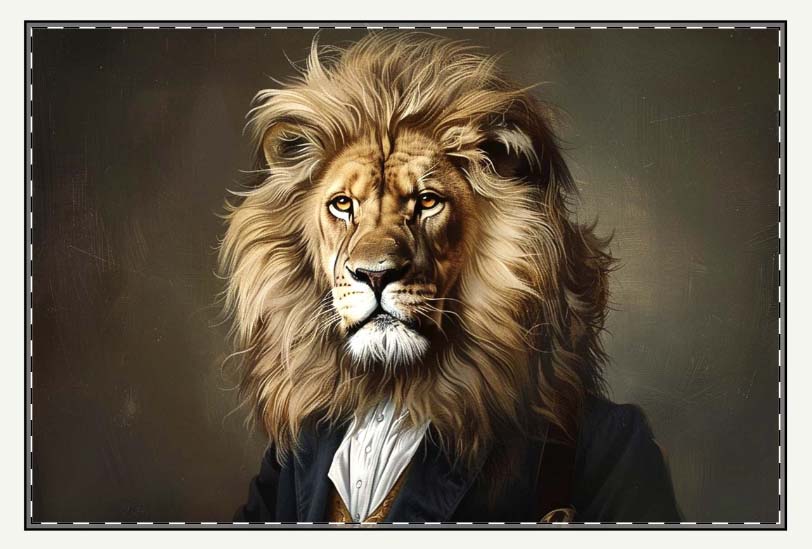
1) Stretch Images To Fit Print Area(s)
- Scales artwork to the print-area’s exact dimensions.
- Pros: Full coverage, quick, uniform.
- Use for: Abstracts, patterns, or designs that tolerate non-uniform scaling.
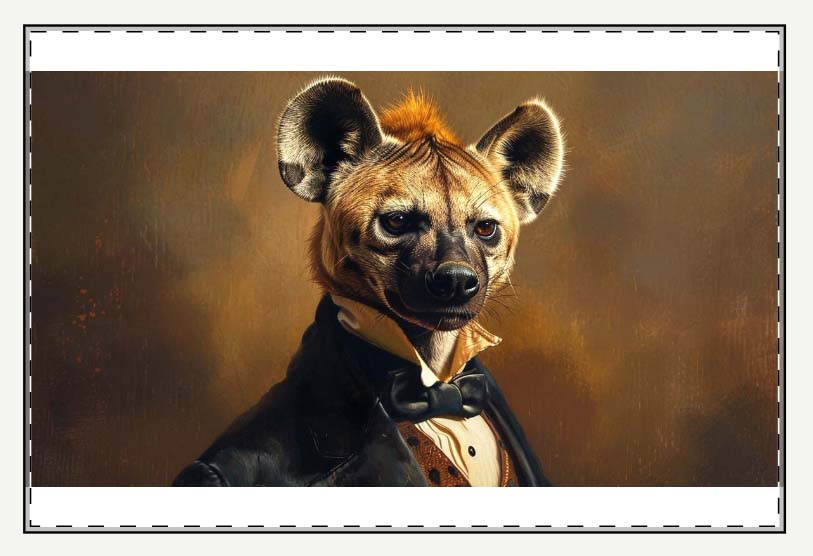
2) Preserve Image Aspect Ratios & Center
- Scales each image until the nearest print-area boundary is reached without changing aspect ratio, then centers it.
- Pros: No distortion; composition preserved.
- Use for: Photography, typography, or any design where proportion matters.
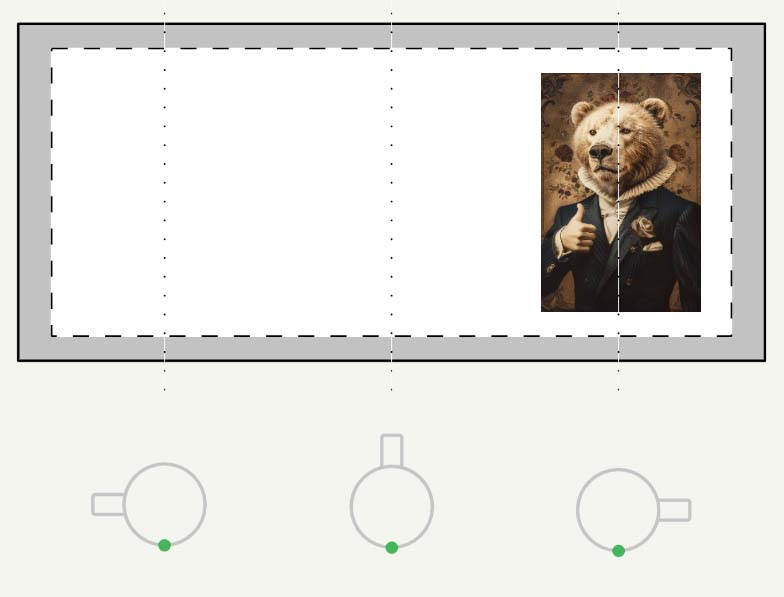
3) Exactly Match Example Image(s)
- Replicates the example product’s image placements and coordinates across new products.
- Pros: Pixel-consistent framing relative to your blueprint.
- Use for: Series that must align visually (e.g., subject positioned identically across variants).

Resolution note: Images get automatically upscaled to high-resolution in the background.
Practical guidance:
- Group images by aspect ratio and run separate batches when ratios differ.
- “Preserve & Center” is a safe default; use “Stretch” only if distortion is acceptable and if filling the full print area is desirable; use “Exactly Match” when you’ve perfected the blueprint framing.
Why this matters: Practical, plain-English benefits
Manual reality (the slow way): Upload each artwork file one-by-one, wait for each to finish, drag and nudge it into place, repeat that on every variant/size, misclick, redo, and try to keep everything consistent across dozens (or hundreds) of products. It’s slow, boring, and error-prone. Composition drifts. Crops are inconsistent. A single slip means rework.
Automated reality (the fast way): Drop in a folder of images once, pick a placement rule (Stretch, Preserve & Center, or Exactly Match Example), and let the tool apply the same rule perfectly on every variant, every time. No waiting. No dragging. No second-guessing. Just consistent, accurate placement across the whole batch—fully automated.
- Massive time savings: Replace hours of micro-adjusting with a single batch run.
- Pixel-level consistency: Every listing follows the same framing logic; no “one-off” crops.
- Fewer mistakes: Automation removes manual slips that lead to bad previews or support tickets.
- Scales cleanly: Whether it’s 10 images or 1,000, the process is identical and predictable.
Bottom line: Stop babysitting uploads and positioning artwork in the Printify UI. Choose the rule once—let the system do the rest at production speed.
Step 2: Connect your print-on-demand store & select an example product

Choose target store
- In Create Products For This Store, pick the store to receive the new products. (In this article, we will focus on connecting the tool to a Printify store.)
- To connect a new store:
- Copy the Store ID from the Printify Orders page URL (e.g.,
https://printify.com/app/store/1805297/orders/1). - Create a Printify API Key with the necessary scopes in Account → Connections.
- Copy the Store ID from the Printify Orders page URL (e.g.,

Required Printify API scopes
catalog.readprint_providers.readproducts.readproducts.writeshops.readuploads.readuploads.write
Select an Example Product
- In Example Product To Use, select the finished product that acts as your blueprint (e.g., “wall posters 2:3 aspect ratio”).
- To connect a new example product: copy the Product ID from the product details URL (e.g.,
https://printify.com/app/product-details/68b492bdc92cce7cb20a8b04?...).

What the Example Product controls
- Variants: sizes/materials to be created.
- Print-areas: the canvases onto which images are placed.
- Prices: the specific price-points assigned to the different product variants.
- Placement replication: when using “Exactly Match Example Image(s).”
Best practice: Treat the example product as the single source of truth. Ensure variants, prices, and product settings are final before running a large batch.
Step 3: Product creation rules (titles, descriptions, tags)
This panel governs how metadata is produced for each new product.

Titles
- Use Image Filenames — pragmatic for catalog-style batches with clean filenames.
- Generate Using AI — two modes:
- Simple: concise, category-aware titles.
- Compound: multi-segment titles; you set the number of subtitle segments to include (e.g., subject + style + medium + room/intent).
- Include Custom Text In Each Title — append consistent suffixes (e.g., “— Canvas Wall Art”).
- Title Template — combine elements (e.g.,
[AI-Generated Title] + [Custom Text]).
Tips:
- Decide a canonical title pattern per category to stabilize SEO.
- Compound titles are useful for long-tail coverage; keep them scannable.
Descriptions
- Copy From Example Product — maximum consistency with your proven copy.
- Generate Using AI — choose # of paragraphs and optionally include Custom HTML (e.g., materials note, care instructions, size chart link).
Tips:
- If your example product has a strong, conversion-oriented description, copying it ensures uniform messaging.
- For large, diverse collections, AI can adapt text to image content while preserving your template.
Tags
- Copy From Example Product — mirrors your current taxonomy.
- Generate Using AI — set Max # of AI-Generated Tags; optionally append evergreen tags to every product (brand, niche, seasonal).
Tips:
- Cap total tags sensibly and avoid keyword stuffing.
- Append only a small set of evergreen tags across the batch.
Skip the grind: Automate SEO titles, descriptions & tags
Manual reality (the slow way): Stare at a blank field and write 100+ unique titles and descriptions that describe the subject, mood, colors, style, and scene; then hand-pick tags. Doing this for large collections is boring, exhausting, and inconsistent—and it’s easy to miss keywords or repeat yourself.
Automated reality (the fast way): Set rules once. The tool can copy proven text from your example product or generate SEO-focused titles, multi-paragraph descriptions, and tag sets using AI—on autopilot, for every image in the batch. Add a standard suffix, limit tag counts, and enforce a consistent template across your whole catalog.
- Hours back: Replace mind-numbing field-filling with a single configuration.
- SEO discipline at scale: Consistent patterns for titles, descriptions, and tags across every product.
- Quality + speed: AI summarizes image content and style while following your template and guardrails.
- Fewer gaps: Reduce missed keywords, duplicated phrasing, and formatting drift.
Bottom line: Stop racking your brain for new ways to describe similar artwork. Let AI produce on-brand, SEO-aligned copy for the entire collection in one pass.
Start, monitor, cancel
- Click Create My Products to launch the batch.
- The status area displays Operation Status, Progress (e.g.,
12/50 products created), and a Cancel Current Operation control for long runs.
3) Saved Operations (repeatable templates)

Any configuration—store, example product, placement mode, content rules—can be saved and re-used:
- Save Current Operation — name the configuration.
- Load Saved Operation — recall a prior setup instantly.
Use cases:
- “Posters 2:3 — Compound Titles — AI Tags 20”
- “Canvas 1:1 — Copy Example Descriptions — Evergreen Room Decor Tags”
Saved Operations are the fastest way to achieve consistency across large catalogs while minimizing setup time for recurring workflows.
4) Benefits vs. The Manual Process
- Time compression: Convert hours of repetitive listing work into a short, guided run. Batch creation scales linearly with your images rather than your manual bandwidth.
- Consistency by design: Cloning from a perfected example product removes formatting drift and copy/paste errors. Image placement, variants, and SEO structure remain uniform.
- Fewer mistakes: Centralized rules reduce missed tags, malformed titles, and mismatched variants that commonly occur in manual workflows.
- SEO discipline at scale: Title/description/tag templates ensure your keyword conventions are applied identically across a collection.
- Operational repeatability: Saved Operations let you standardize across teams or clients.
- Higher leverage: Time saved can be shifted to design work, marketing, and customer acquisition—the activities that actually drive revenue.
5) Best-practice setups & common pitfalls
Best practices
- Perfect the example product first. Lock variants, prices, print-areas, and preview imagery.
- Batch by aspect ratio. Run separate batches for 2:3, 4:5, 1:1, etc.
- Choose placement mode deliberately.
- Photography/typography → Preserve & Center
- Patterns/abstracts → Stretch
- Pixel-matched series → Exactly Match Example
- Standardize titles. Use Compound titles when long-tail coverage is valuable; define segment order once and reuse it.
- Append only essential evergreen tags. Keep relevance tight.
- Smoke test before scaling. Create 3–5 products, review, then run the full collection.
Common pitfalls
- Mixing disparate aspect ratios in one batch and expecting uniform results.
- Using “Stretch” on sensitive photography or type, causing distortion.
- Overlong, inconsistent titles when Compound rules are changed mid-project.
- Excessive tag counts that dilute topical relevance.
- Running a large batch before validating the example product’s settings.
6) FAQ
Does the tool change my example product?
No. It reads the example product as a blueprint and creates new products.
Can I mix categories in one batch?
Use one example product per batch. For canvases and posters, run two batches with matching blueprints.
What if the image aspect ratio differs from the print-area?
Stretch fills the area but can distort.
Preserve & Center fills the nearest edge without distortion; composition is centered.
Exactly Match Example reproduces the blueprint placement; if ratios differ significantly, split the batch.
How do I connect a store and example product?
Store: copy Store ID from the Orders URL, create an API key with required scopes (catalog.read, print_providers.read, products.read, products.write, shops.read, uploads.read, uploads.write). Example product: copy Product ID from the product details URL.
Is there a separate image upscaling step?
No. High-resolution handling is automatic. All of your artwork images will automatically get upscaled to high-resolution, to provide the best possible print-quality for your customers.
Closing summary
The Bulk POD Product Creator operationalizes the way experienced sellers already work: start from a perfect example product, apply a consistent placement rule, and enforce a disciplined SEO pattern—then repeat. By turning those choices into a reusable template, it removes the bottleneck of manual listing creation, reduces mistakes, and scales your store’s output in a controlled, repeatable way.
Stop wasting time on the boring, tedious process of manually creating your print-on-demand products one at a time. Instead, automate this process using the Bulk POD Product Creator, and free up tons of time to spend on more valuable activities in your print-on-demand business.