How To Generate Artwork Images In Bulk For Print-on-Demand Using AI
Overview: If you’re new to AI artwork and POD, this guide keeps the steps simple, fast, and non-technical. You’ll learn how to (1) use ChatGPT to produce a big list of creative prompts, (2) turn those prompts into artwork at scale with either Midjourney (easy manual) or DALL·E 3 (fully automated), and (3) convert your images into print-on-demand products in bulk via the Bulk POD Product Creator.

Step 1 — Use ChatGPT to bulk-generate artwork prompts
ChatGPT is a conversational AI that can generate ideas and output text in precisely the format you request. Image generators (Midjourney, DALL·E 3, etc.) create pictures from text prompts, so high-quality prompts directly translate into better images.
Instead of racking your brain for new ideas all day, let ChatGPT produce hundreds of varied prompts that match your niche (style, subject, composition, color). Your job becomes curation—picking winners—rather than grinding out descriptions.
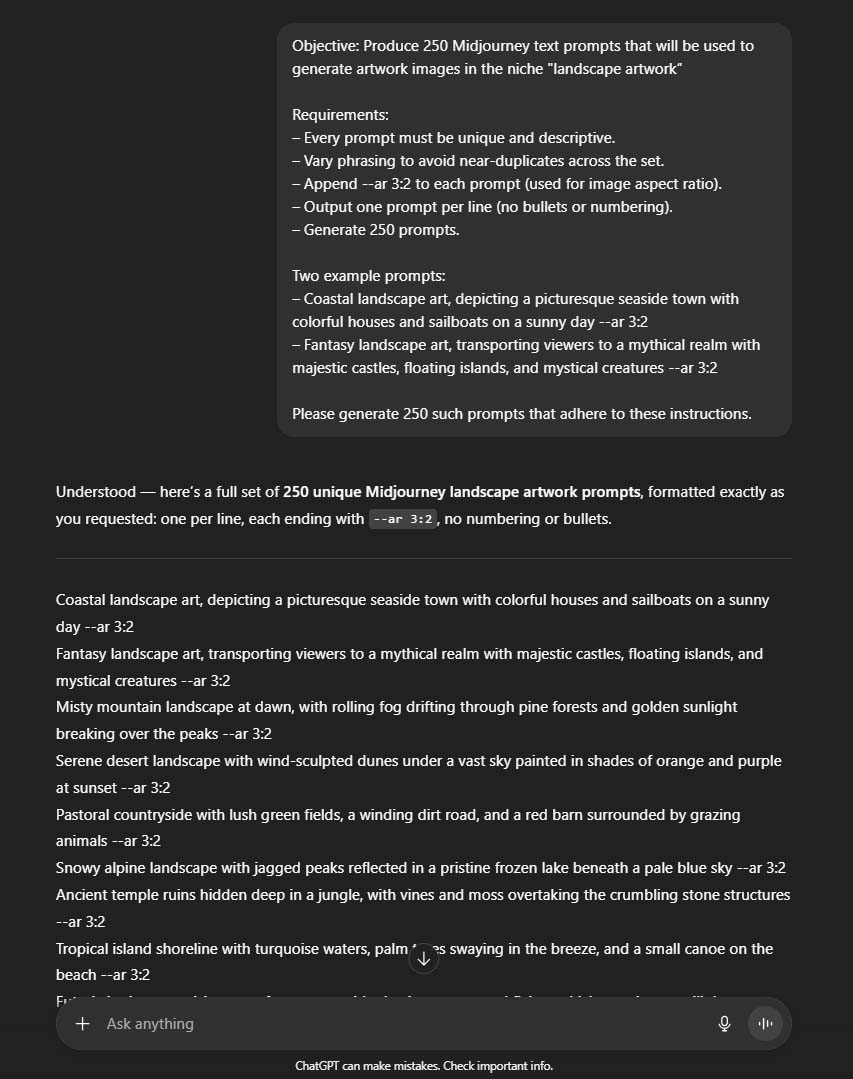
Paste this instruction into ChatGPT and modify for your niche (landscape art example)
Objective: Produce 250 Midjourney text prompts that will be used to generate artwork images in the niche "landscape artwork”
Requirements:
– Every prompt must be unique and descriptive.
– Vary phrasing to avoid near-duplicates across the set.
– Append --ar 3:2 to each prompt (used for image aspect ratio).
– Output one prompt per line (no bullets or numbering).
– Generate 250 prompts.
Two example prompts:
– Coastal landscape art, depicting a picturesque seaside town with colorful houses and sailboats on a sunny day --ar 3:2
– Fantasy landscape art, transporting viewers to a mythical realm with majestic castles, floating islands, and mystical creatures --ar 3:2
Please generate 250 such prompts that adhere to these instructions.
Two example lines ChatGPT might output:
- Realistic desert landscape painting, showcasing the vastness of sand dunes --ar 3:2
- Cubist-inspired landscape art, depicting various angles and perspectives --ar 3:2
Optional: Copy ChatGPT’s output into a CSV spreadsheet file (one prompt per line), for simplified handling.

Step 2 — Turn text prompts into artwork images (two easy paths)
Choose the path that matches your preference: Midjourney for simple manual creation and premium aesthetics, or DALL·E 3 for a fully automated pipeline.
Option A — Midjourney (simple, human-operated)
- Create a Midjourney account and select a plan.
- Open your prompt list and Midjourney side-by-side.
- Copy → paste → wait for the grid → upscale winners → download.
- Optional: purchase extra “Fast” time to accelerate large batches.
- Efficiency boost: Instead of upscaling and downloading in real time as the images get created, instead, do a single bulk curation pass ONLY at the very end. Upscale and download only the very best images that you’ll actually turn into products.
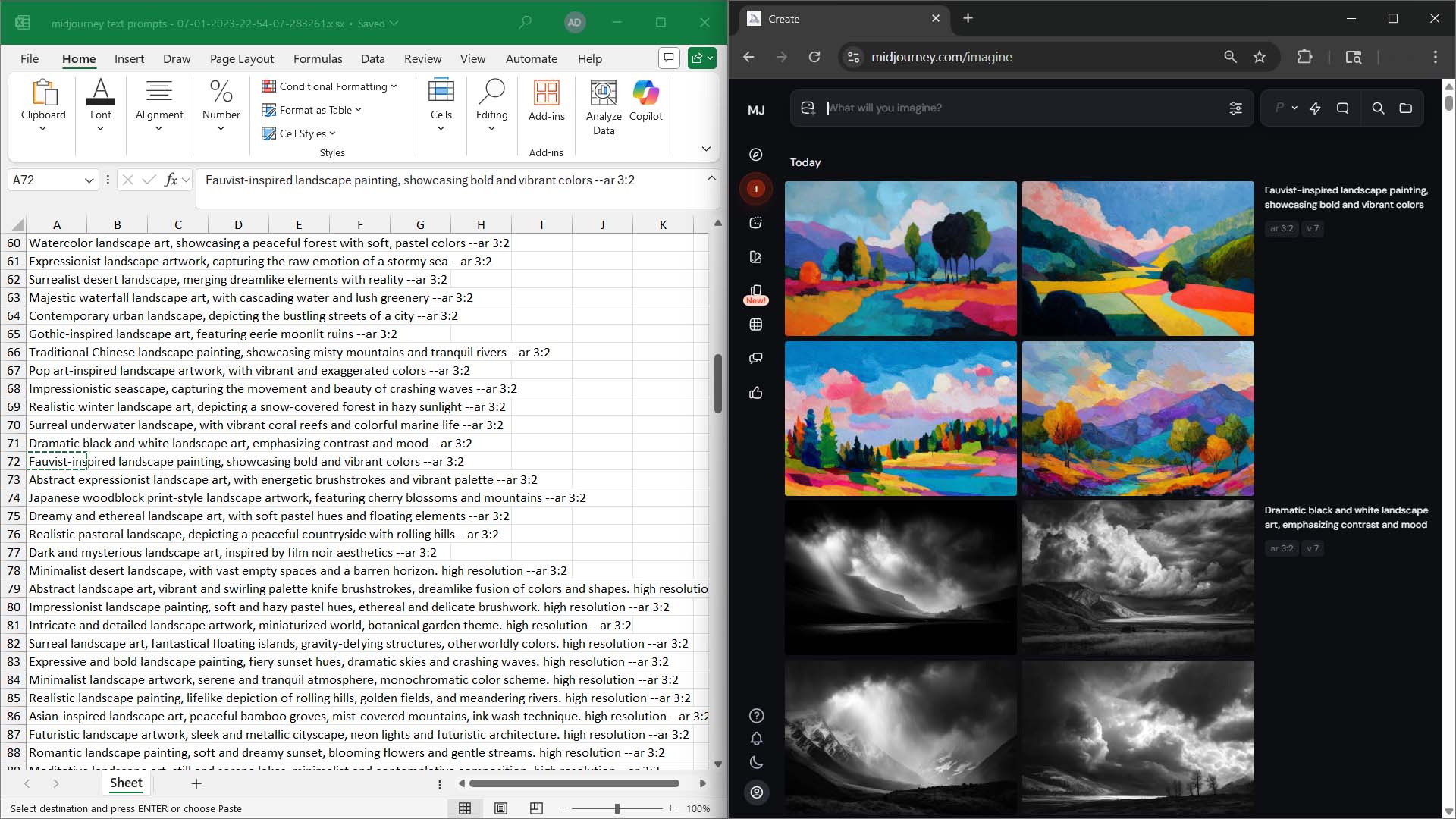
This approach is repetitive, but mechanically simple. Put on music, relax, copy/paste your prompts in batches, and collect the best results—no technical setup is required, and no sweaty computer-programming workflows are required.
Option B — DALL·E 3 (fully automated, from a CSV)
Prefer true hands-off generation? Use OpenAI’s Images API. Place your prompts in a simple CSV (one per line), run the Python script below, and images will be saved to a folder automatically.
# bulk_dalle3_from_csv.py
# Generate images in bulk via OpenAI's Images API using DALL·E 3.
# Reads prompts from prompts.csv (first column), saves PNGs to AI_generated_images/.

import os
import csv
import base64
from pathlib import Path
from typing import List
from openai import OpenAI

# --- Configuration: You edit this as needed before running ---
openai_api_key = "YOUR_OPENAI_API_KEY" # replace with your actual OpenAI API key
prompts_csv_path = "prompts.csv" # first column only, one prompt per row
output_folder_path = "AI_generated_images"
target_model_name = "dall-e-3" # swap to "gpt-image-1" if you prefer that model
image_size_setting = "1024x1024" # DALL·E 3: 1024x1024, 1792x1024 (wide), 1024x1792 (tall)
image_quality_setting = "standard" # DALL·E 3: "standard" or "hd"

# --- Setup ---
client = OpenAI(api_key=openai_api_key)
output_dir = Path(output_folder_path)
output_dir.mkdir(parents=True, exist_ok=True)

def load_prompts_from_csv(csv_path: str) -> List[str]:
    """Read the first column of a CSV; return a list of non-empty prompt strings."""
    prompts: List[str] = []
    with open(csv_path, "r", newline="", encoding="utf-8") as f:
        reader = csv.reader(f)
        for row in reader:
            if not row:
                continue
            prompt_text = (row[0] or "").strip()
            if prompt_text:
                prompts.append(prompt_text)
    return prompts

def generate_and_save_image(prompt_text: str, image_index: int) -> Path:
    """Generate one image from prompt_text and save it as PNG."""
    print(f"[{image_index}] Generating: {prompt_text[:80]}{'...' if len(prompt_text) > 80 else ''}")

    result = client.images.generate(
        model=target_model_name,
        prompt=prompt_text,
        size=image_size_setting,
        quality=image_quality_setting,  # optional; valid values depend on model
        n=1
    )

    b64_data = result.data[0].b64_json  # API returns base64-encoded image
    image_bytes = base64.b64decode(b64_data)
    output_file = output_dir / f"image_{image_index:04d}.png"
    with open(output_file, "wb") as f:
        f.write(image_bytes)

    print(f"[{image_index}] Saved: {output_file}")
    return output_file

def main():
    all_prompts = load_prompts_from_csv(prompts_csv_path)
    if not all_prompts:
        print("No prompts found in CSV. Ensure the first column contains one prompt per row.")
        return

    for idx, current_prompt in enumerate(all_prompts, start=1):
        try:
            generate_and_save_image(current_prompt, idx)
        except Exception as e:
            print(f"[{idx}] ERROR: {e}")

if __name__ == "__main__":
    main()
Prefer the newest image model? Change target_model_name to "gpt-image-1" and use a supported size (for example, 1024x1024, 1536x1024, or 1024x1536).
Midjourney vs. DALL·E 3: which should you choose?
- Midjourney: best-in-class visuals; extremely simple to operate manually. You’ll paste, review, upscale, and download—great if you prefer hands-on curation.
- DALL·E 3 via API: results may be less “wow” for certain styles, but it’s fully automated. Ideal if you value time efficiency and want to fire off 100–1,000 images while you do other work.
There’s no wrong answer. Choose the route that fits your time, taste, and volume needs.
Step 3 — Convert your images into POD products (in bulk) automatically
Generating artwork is only half the story. The second half is turning those images into ready-to-sell POD products—with titles, descriptions, tags, variants, and pricing—in bulk.
Meet the Bulk POD Product Creator
The Bulk POD Product Creator takes a folder of images and your perfected Example Product (one you configured by hand) and produces a batch of new products automatically. It:
- Applies your placement logic across sizes (fill the area quickly, preserve aspect ratio & center, or exactly match your Example Product).
- Replicates variants and pricing from your Example Product for consistent listings.
- Generates SEO-aware titles/descriptions/tags automatically—or uses your templates and suffixes.
- Saves your configuration as a Saved Operation for one-click reuse.
Why pairing AI image generation + Bulk POD Product Creator works
- Speed: go from a folder of fresh images to dozens/hundreds of listings in a single run.
- Quality: uniform placements and consistent variant/pricing rules.
- SEO coverage: strong titles/descriptions/tags on every product, without burnout.
- Repeatability: once you like the outputs for a theme, you can scale it reliably.
Your control panel at a glance
- Image intake: drop in your artwork images.
- Placement logic: Stretch to fill; Preserve aspect ratio & center; Exactly match Example.
- Product blueprint: Example Product defines provider/blueprint, print areas, variants, and baseline pricing.
- SEO engine: choose title format (simple or compound) + standardized suffix; generate AI descriptions and append reusable HTML specs; combine artwork-specific tags with broad, product-level tags.


A simple summary of how it works
- Choose/select your images (your new batch).
- Select placement mode (fill, preserve/center, or match Example).
- Connect your print-on-demand store (API token).
- Pick your Example Product (the one to mirror).
- Set your SEO rules (title format + suffix, description strategy + optional HTML, tags).
- Run the automated operation. Review outputs; publish.
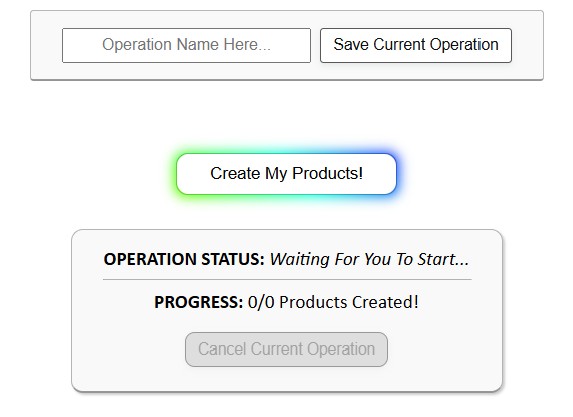
The full pipeline: From text prompts to AI images to ready-to-sell POD products
1) Use ChatGPT to generate a large, varied list of prompts aligned with your niche. 2) Convert those prompts into artwork with either Midjourney (simple manual) or DALL·E 3 via API (fully automated). 3) Feed the finished images into the Bulk POD Product Creator to create all of your print-on-demand products in bulk.
Start small to test the flow end-to-end. Once you like the results, scale by theme, season, and style. The goal isn’t just “more images”—it’s more high-quality listings that convert, built with a workflow you can run again and again with minimal time, effort or energy expended on your part.